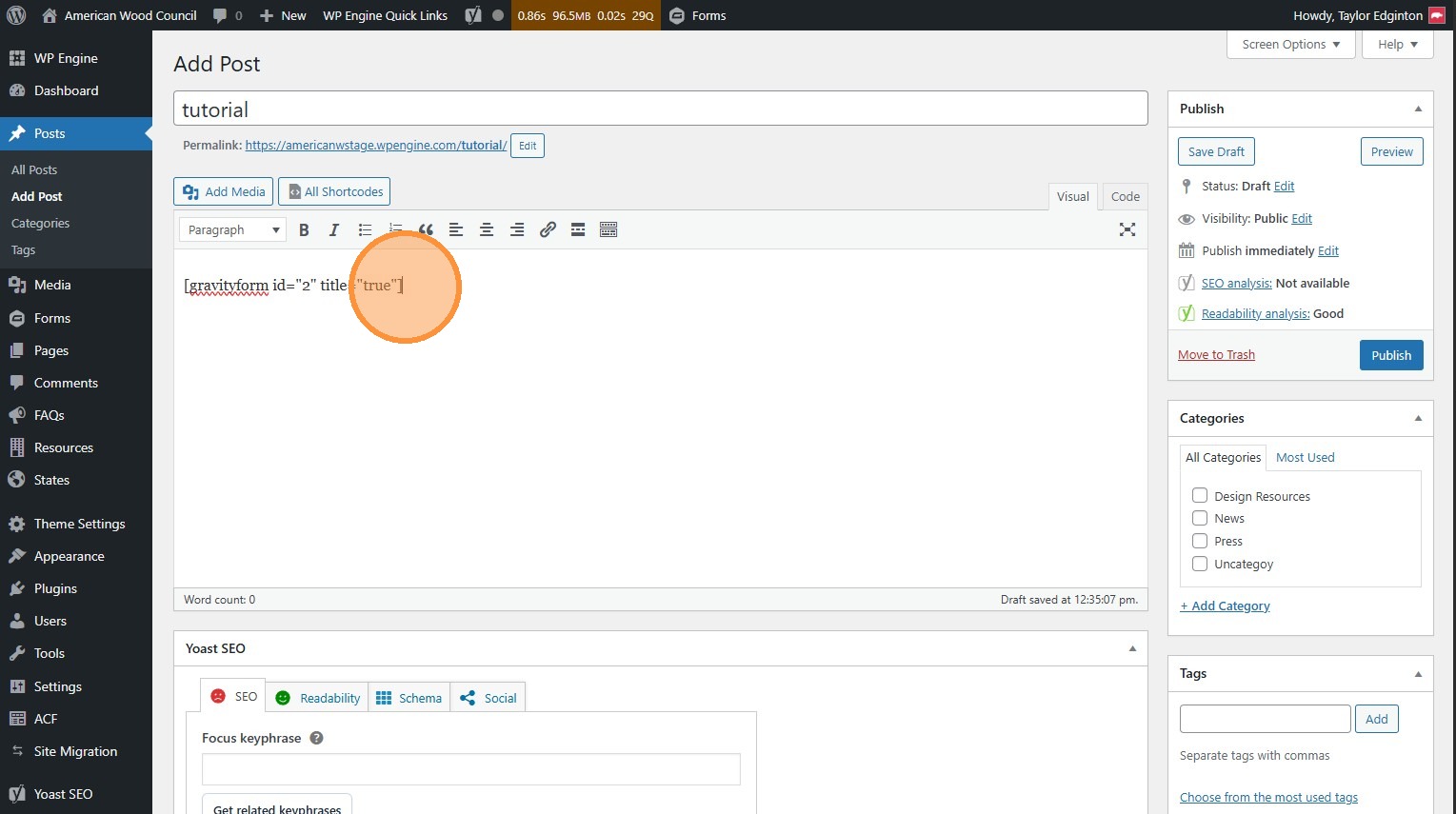
Forms
How to create, edit, and embed forms.
1. Navigate to https://awc.org/wp-admin/, and click Forms.
Section titled “1. Navigate to https://awc.org/wp-admin/, and click Forms.”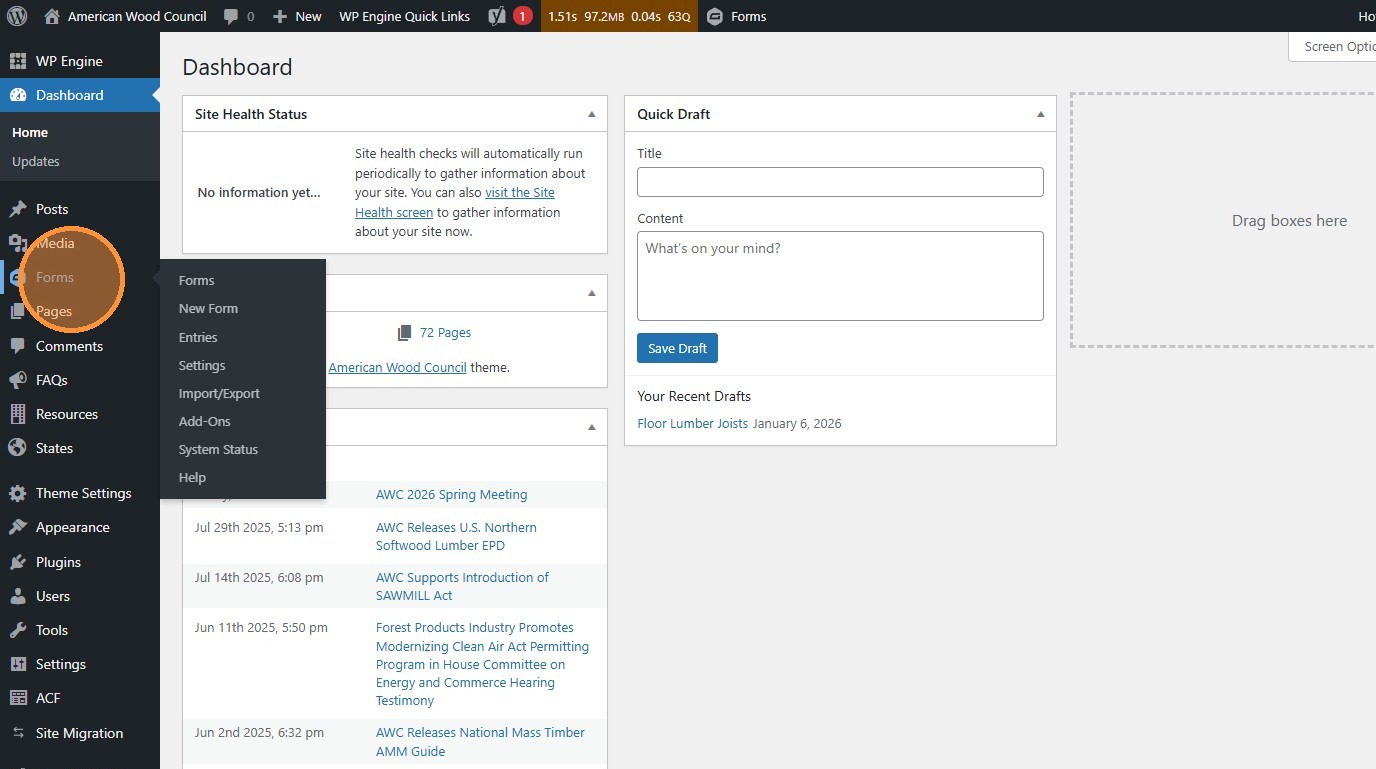
Create/Edit Forms
Section titled “Create/Edit Forms”2. Gravity Forms (https://docs.gravityforms.com/) powers the forms for this website. To edit an existing form, click the “Edit” button.
Section titled “2. Gravity Forms (https://docs.gravityforms.com/) powers the forms for this website. To edit an existing form, click the “Edit” button.”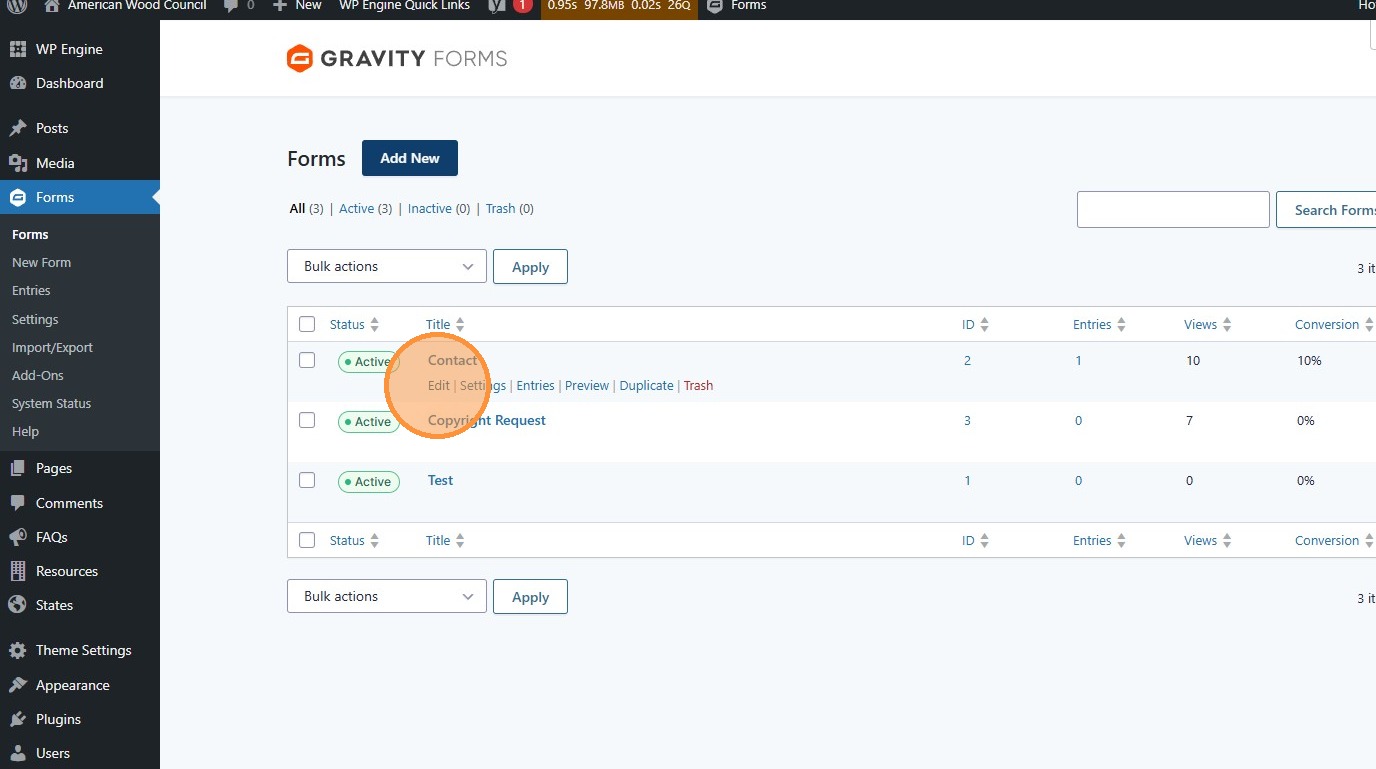
3. Click “Add New” to create a new form
Section titled “3. Click “Add New” to create a new form”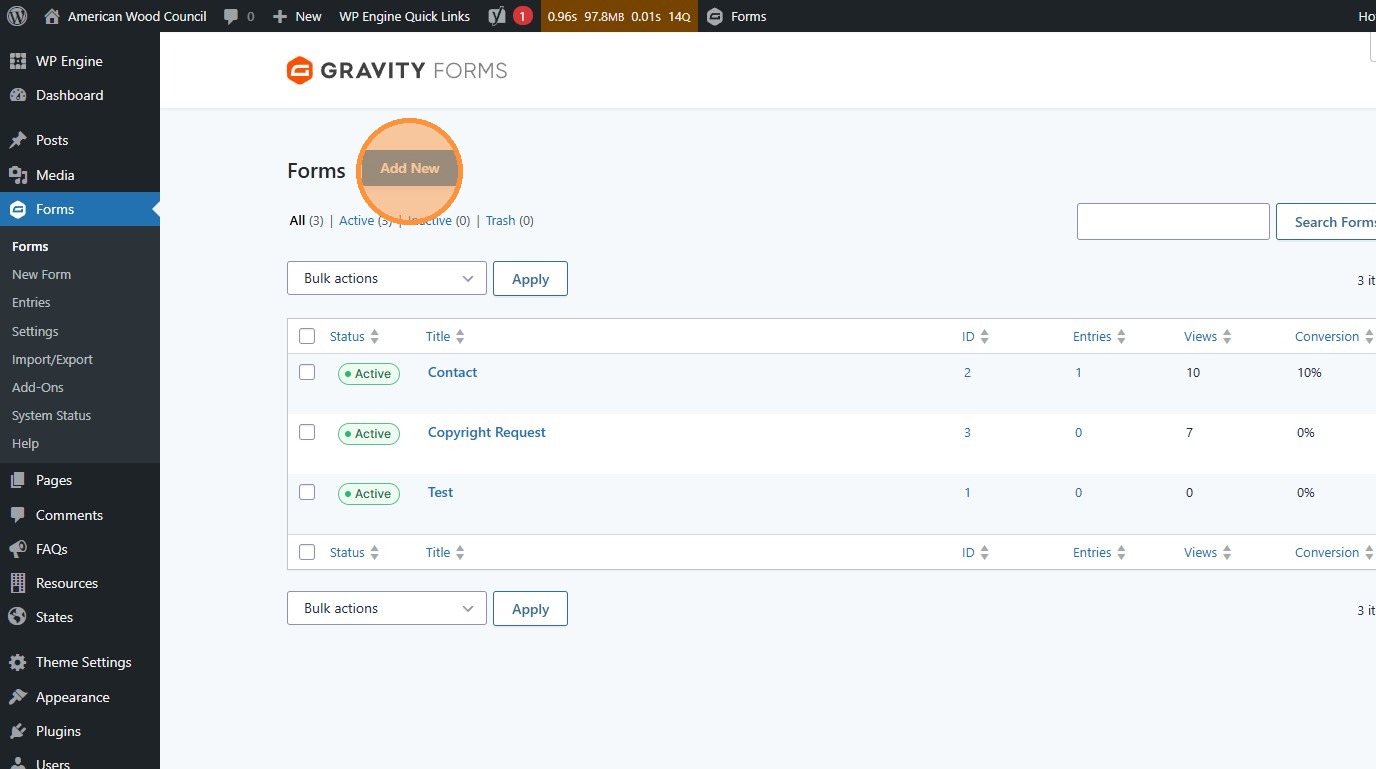
4. Create the form or make the edits you need.
Section titled “4. Create the form or make the edits you need.”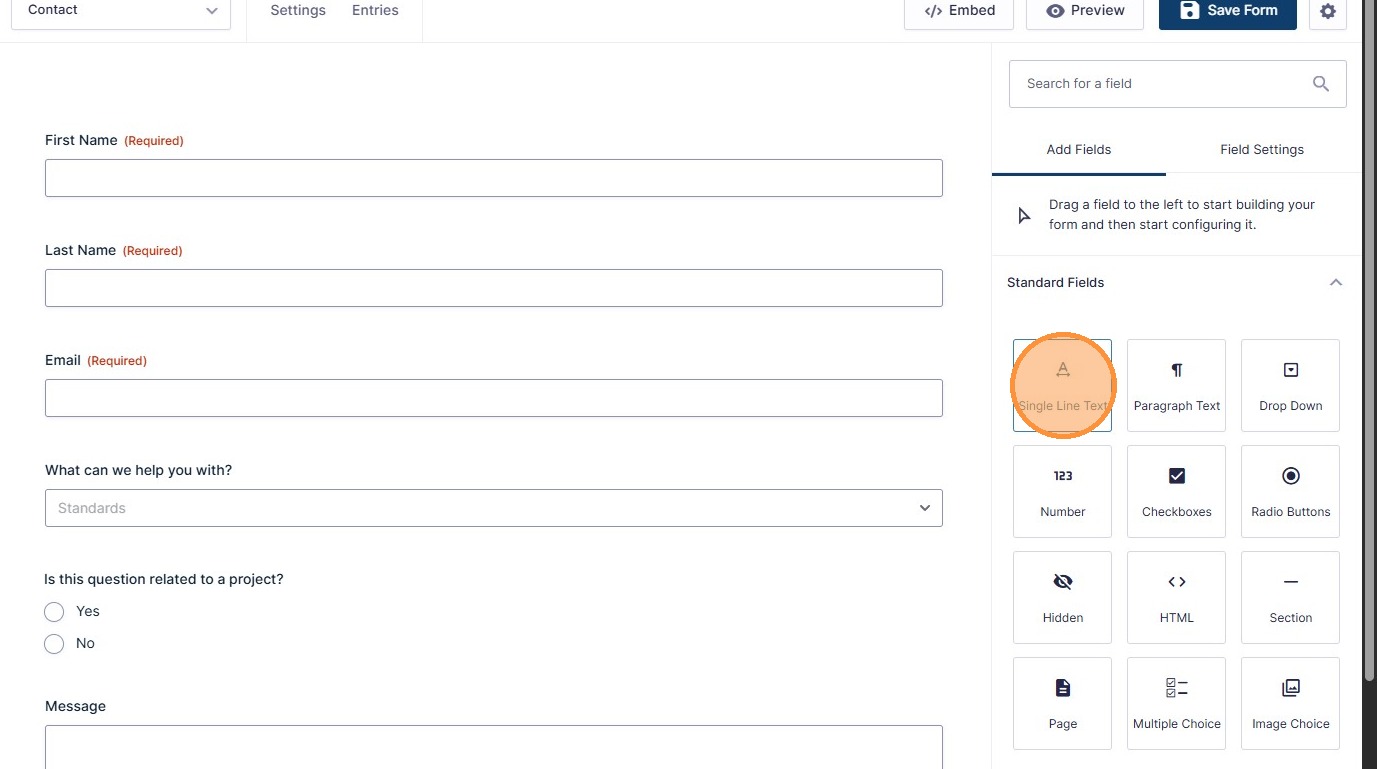
5. Click “Preview” (opens in a new tab) to see your changes before they go live.
Section titled “5. Click “Preview” (opens in a new tab) to see your changes before they go live.”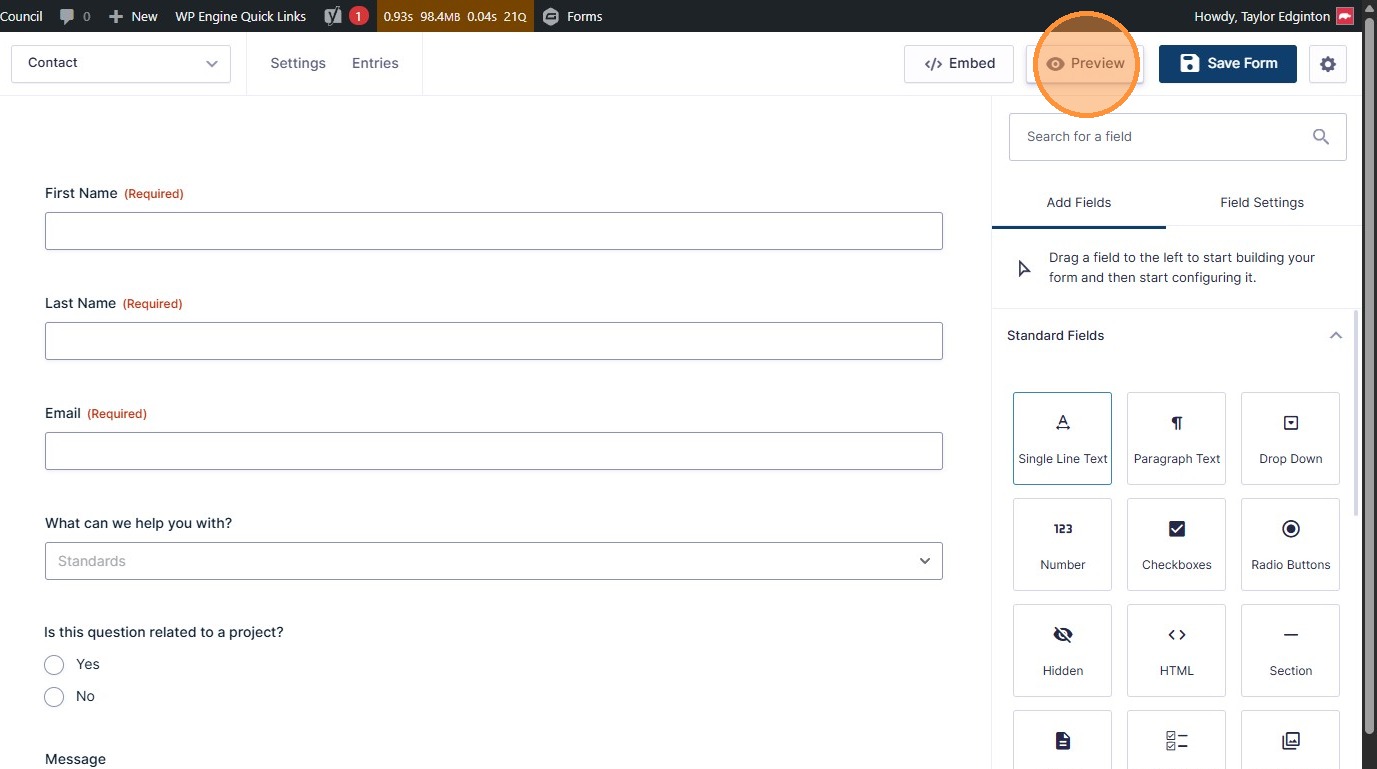
6. Click “Save Form” to publish your changes to the live site.
Section titled “6. Click “Save Form” to publish your changes to the live site.”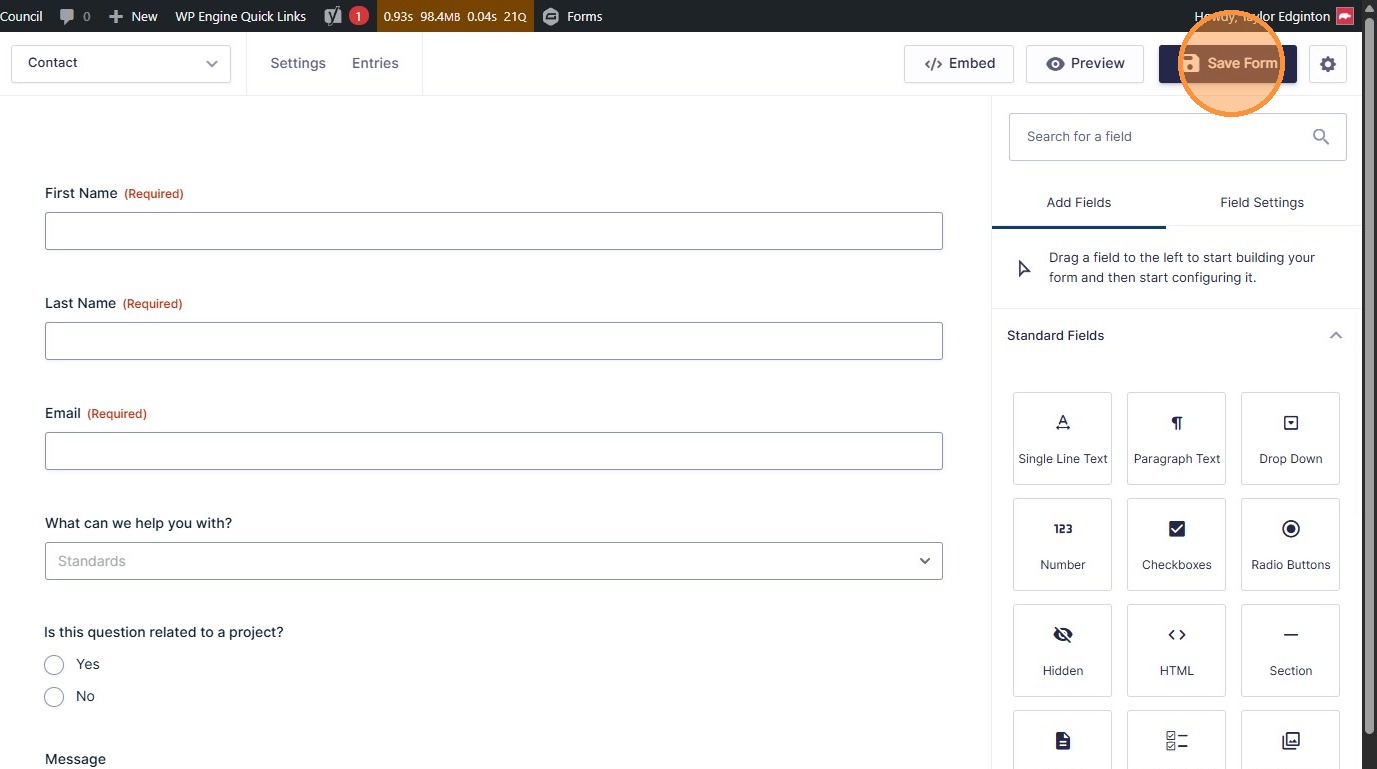
Place Forms
Section titled “Place Forms”7. To place the form on a page or post, click the “Embed” button.
Section titled “7. To place the form on a page or post, click the “Embed” button.”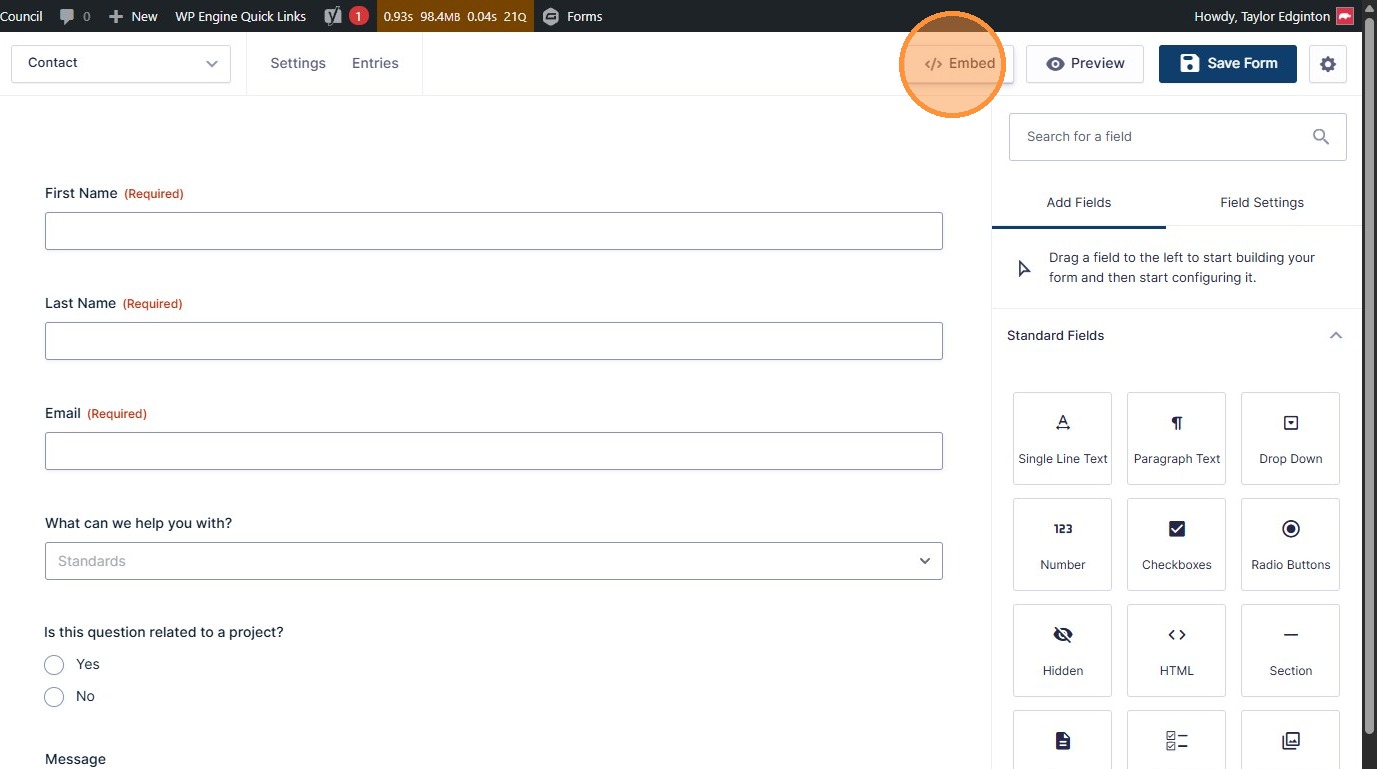
8. Click “Copy Shortcode”
Section titled “8. Click “Copy Shortcode””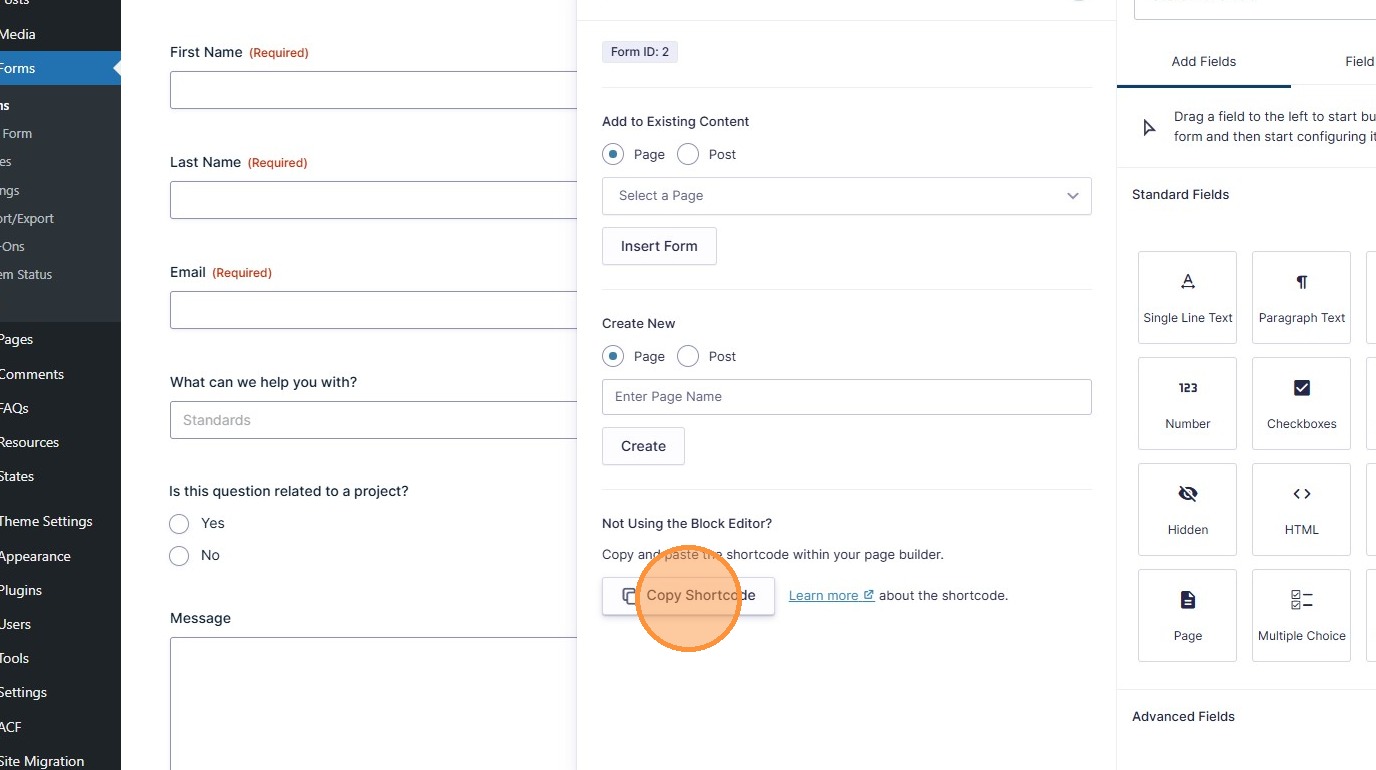
9. Paste the Shortcode into a Post or Text Block module on a Page.
Section titled “9. Paste the Shortcode into a Post or Text Block module on a Page.”