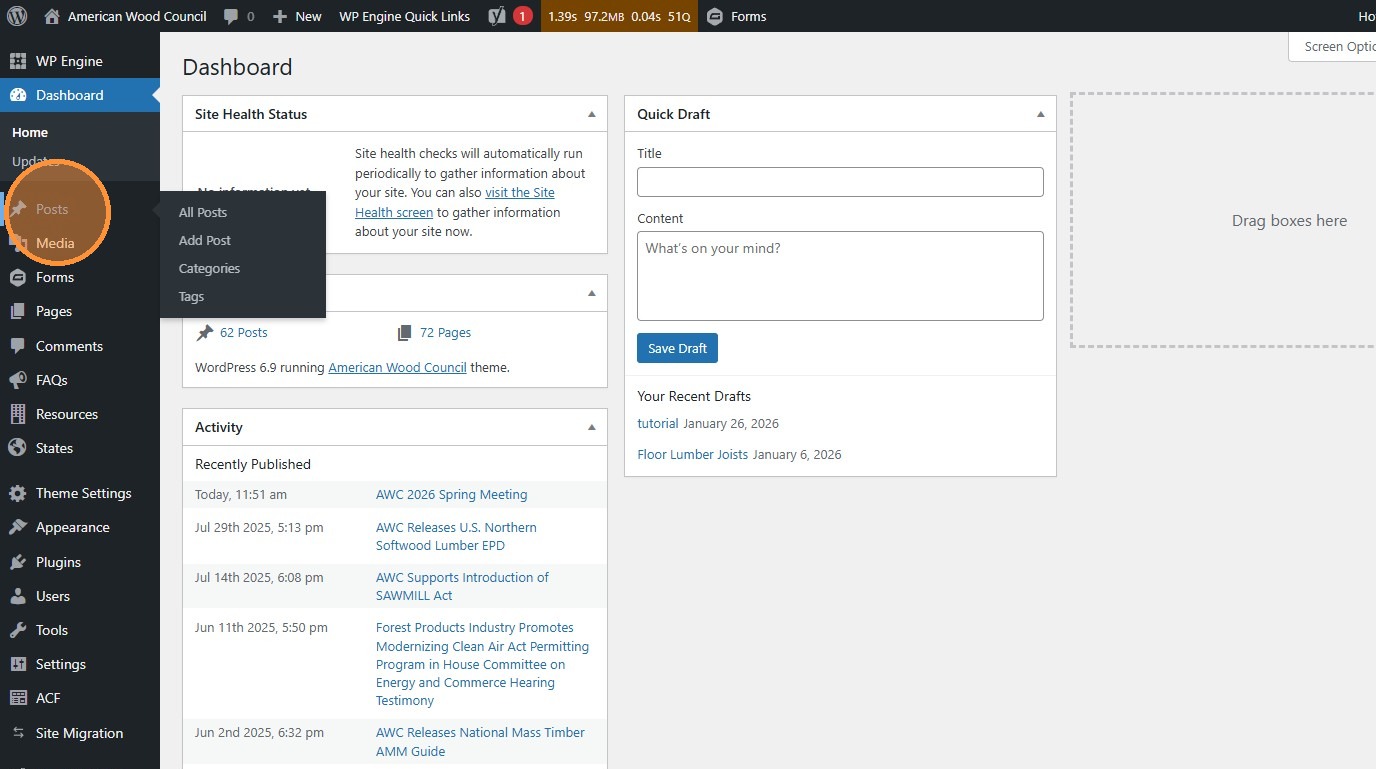
Posts
How to create, edit, and remove posts.
1. Navigate to https://awc.org/wp-admin/, and click “Posts”.
Section titled “1. Navigate to https://awc.org/wp-admin/, and click “Posts”.”These are simpler versions of Pages that appear on the News & Press page.
2. Click “Add Post” to create a new post
Section titled “2. Click “Add Post” to create a new post”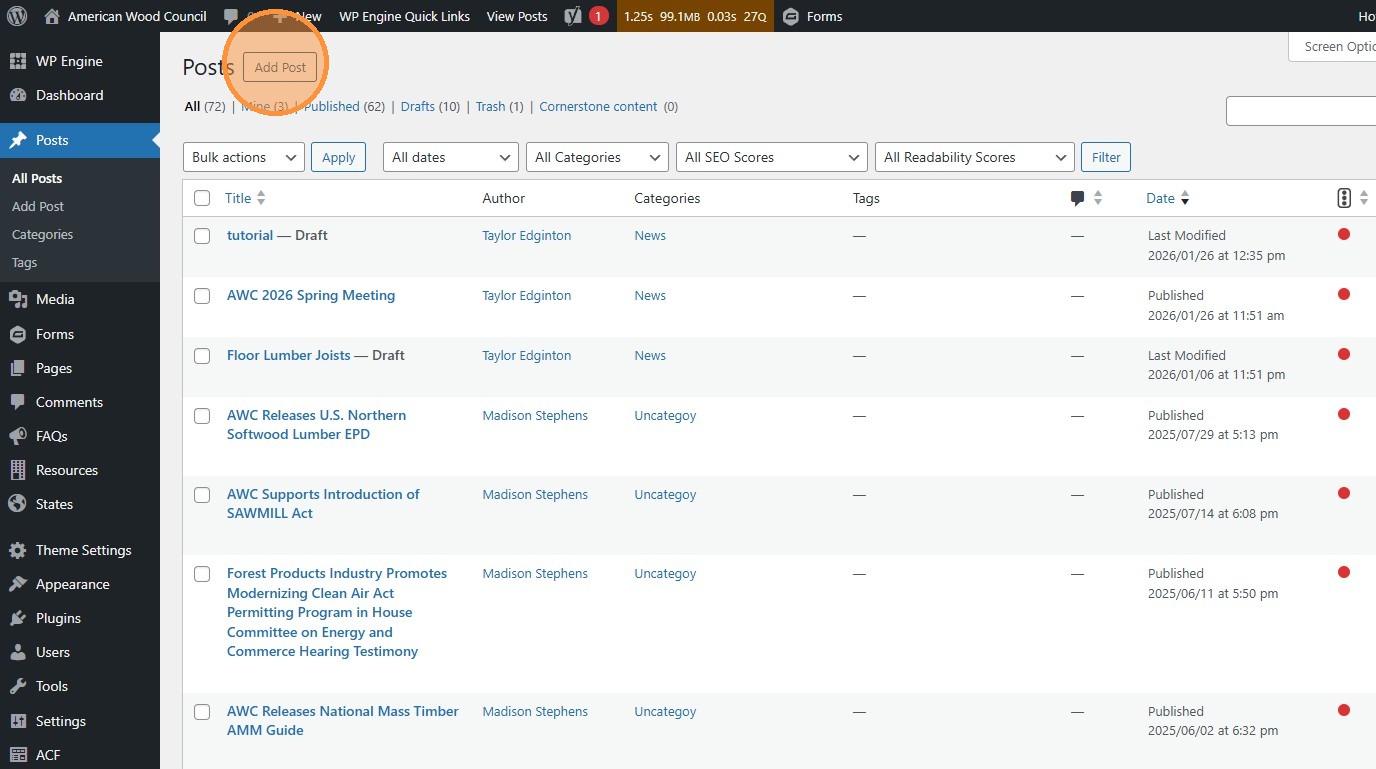
3. or find an existing Post to update and click “Edit”
Section titled “3. or find an existing Post to update and click “Edit””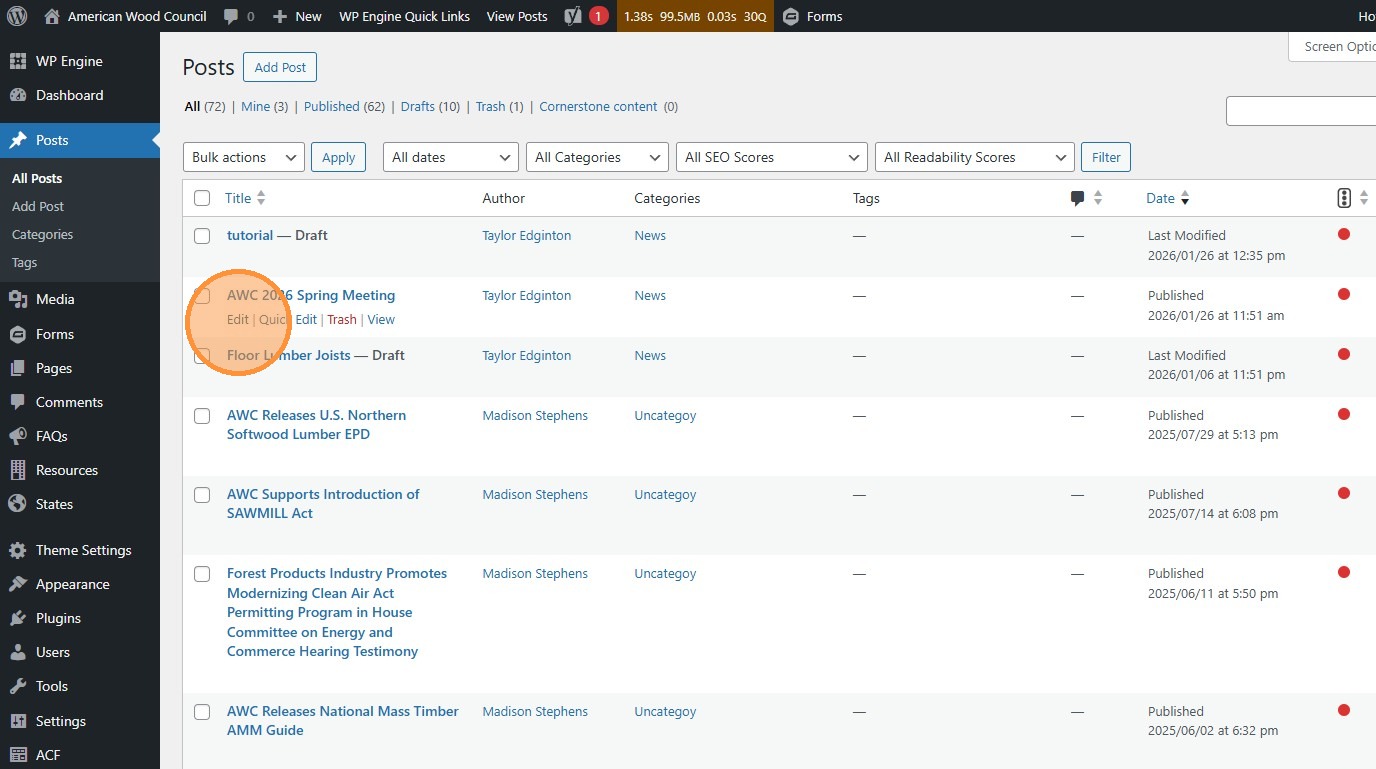
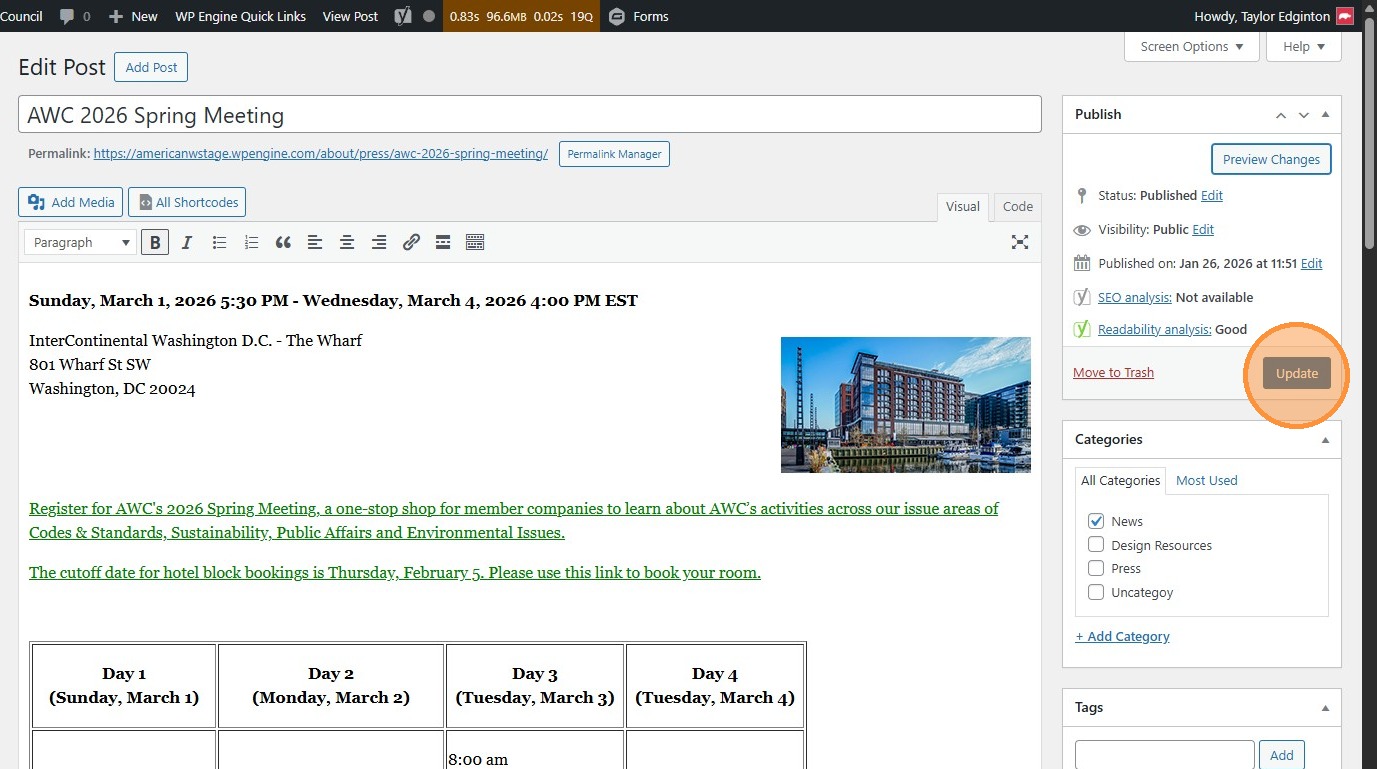
4. Change the fields to change the content on the page.
Section titled “4. Change the fields to change the content on the page.”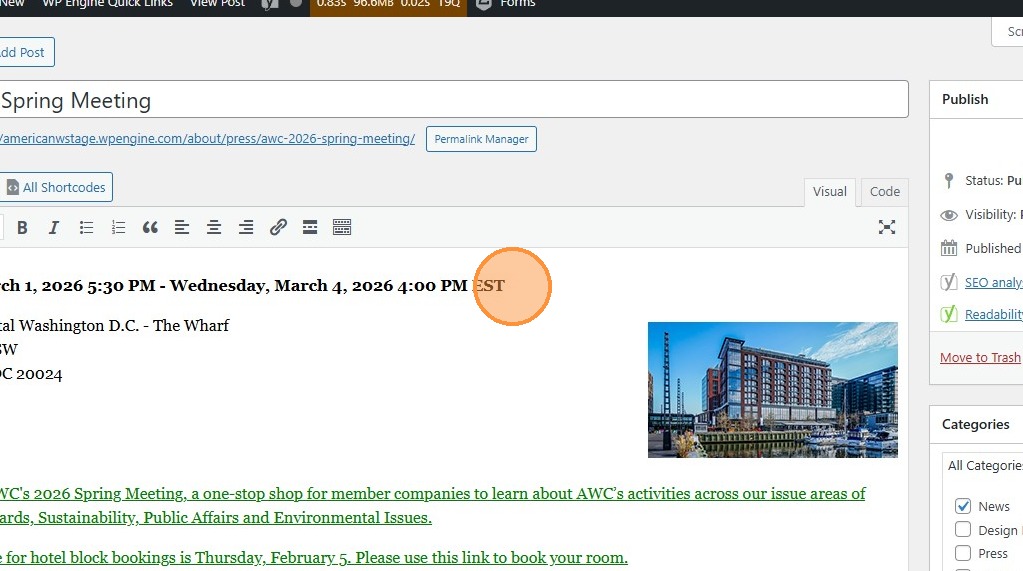
5. Categorize the type of post with this menu here
Section titled “5. Categorize the type of post with this menu here”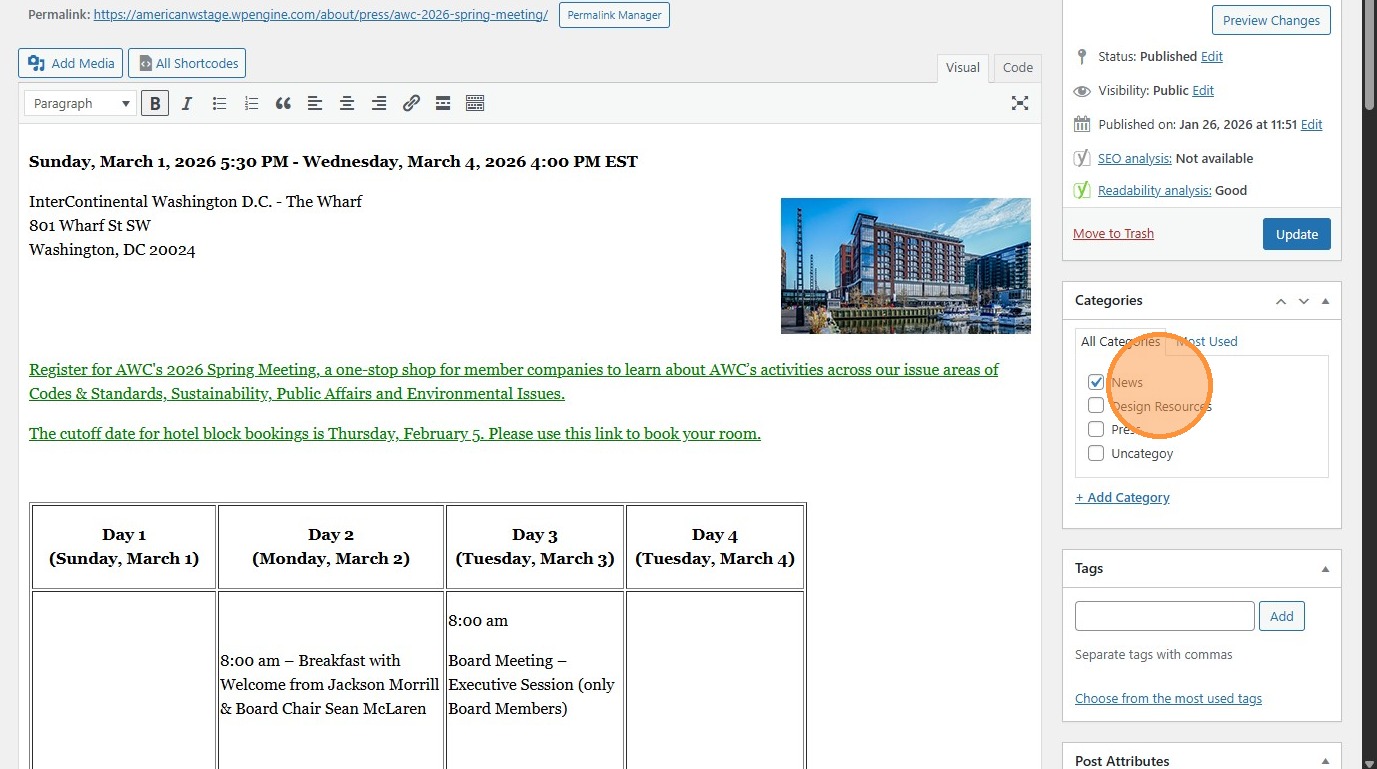
6. Click “Set featured image” to change the image that appears in search results and other summary placements.
Section titled “6. Click “Set featured image” to change the image that appears in search results and other summary placements.”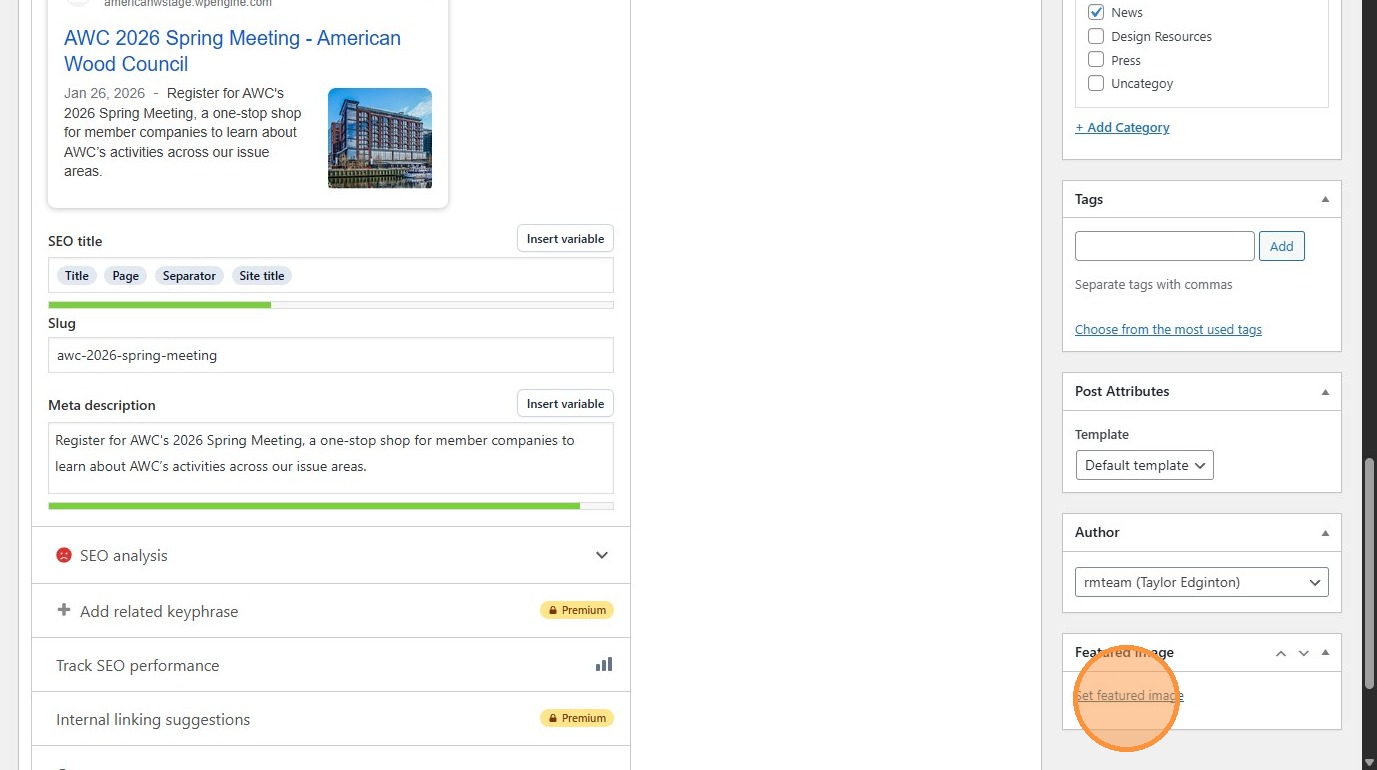
7. Use this text box to edit the post’s title.
Section titled “7. Use this text box to edit the post’s title.”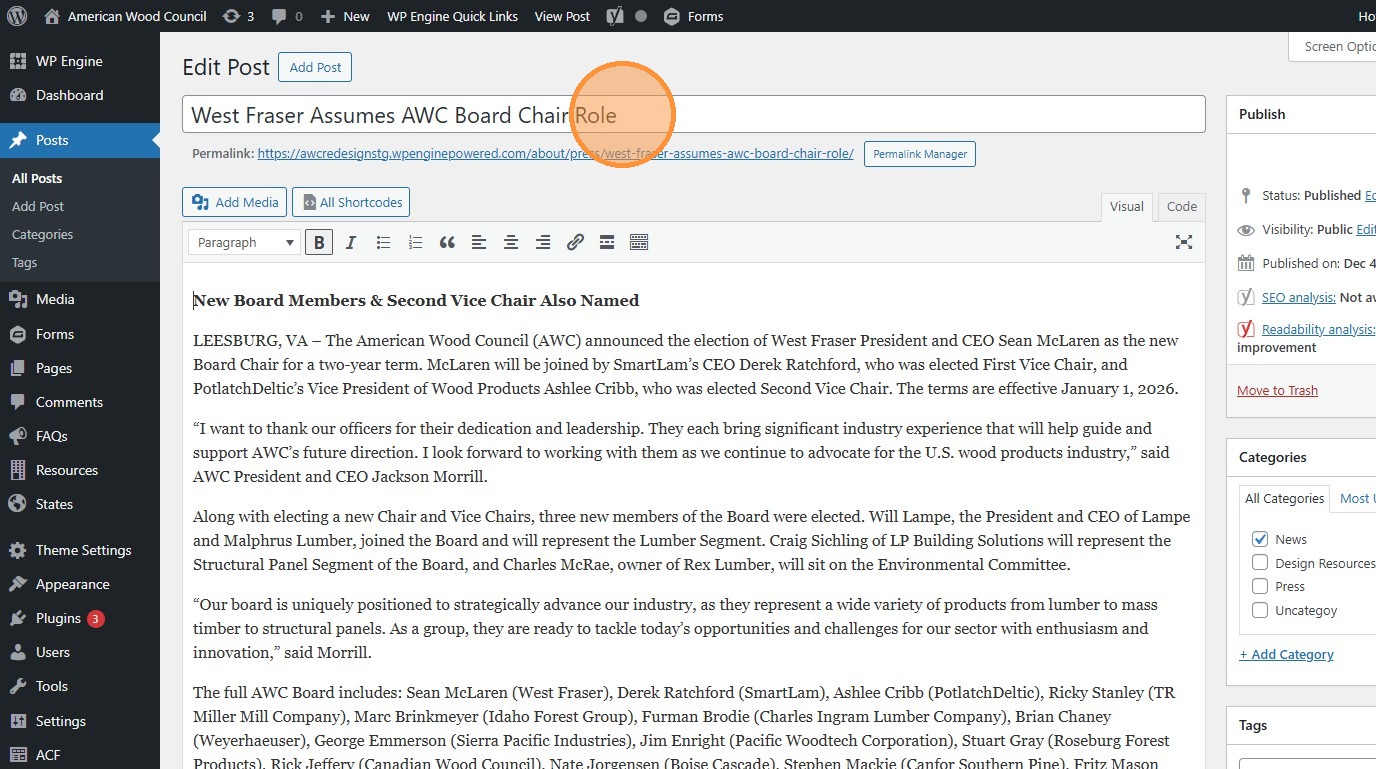
8. Click the “Permalink Manager” (or “Edit”) button to change the page’s URL
Section titled “8. Click the “Permalink Manager” (or “Edit”) button to change the page’s URL”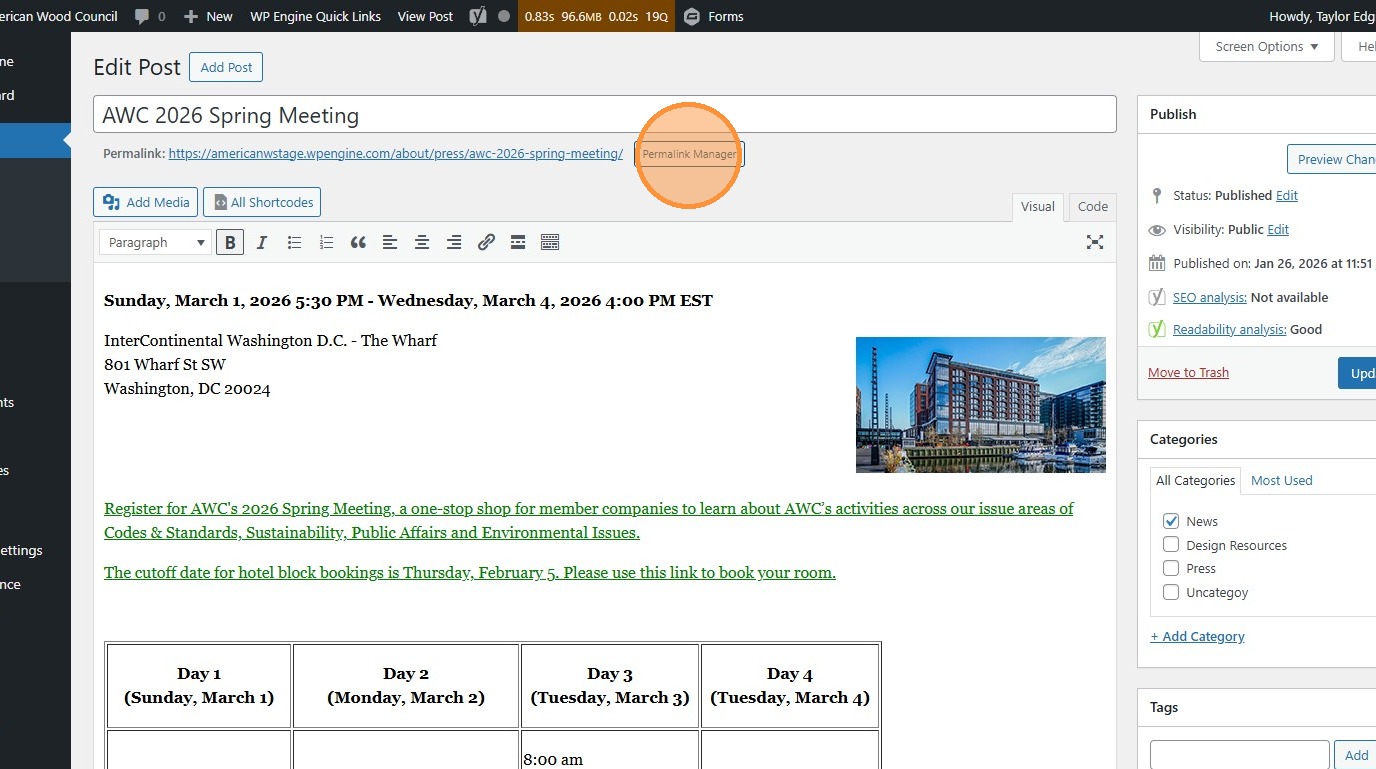
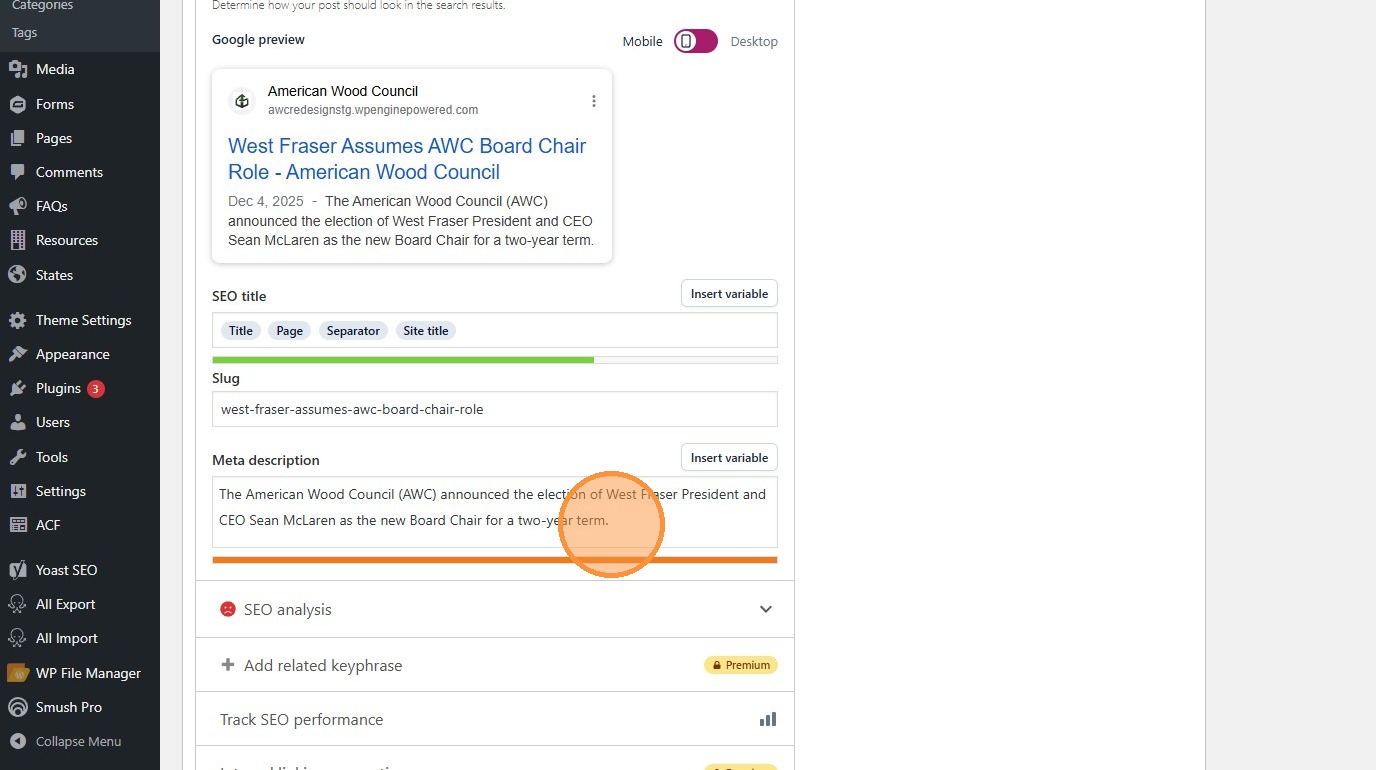
9. Way down at the bottom, each post is equipped with a Yoast module.
Section titled “9. Way down at the bottom, each post is equipped with a Yoast module.”This is where you can edit SEO-related post attributes such as the meta description, which is read by machines and shows underneath the post when it shows up on search engines.
10. Click “Preview Changes” (opens in a new tab) to see your changes before they’re official. The post must be saved as a draft or published to do this.
Section titled “10. Click “Preview Changes” (opens in a new tab) to see your changes before they’re official. The post must be saved as a draft or published to do this.”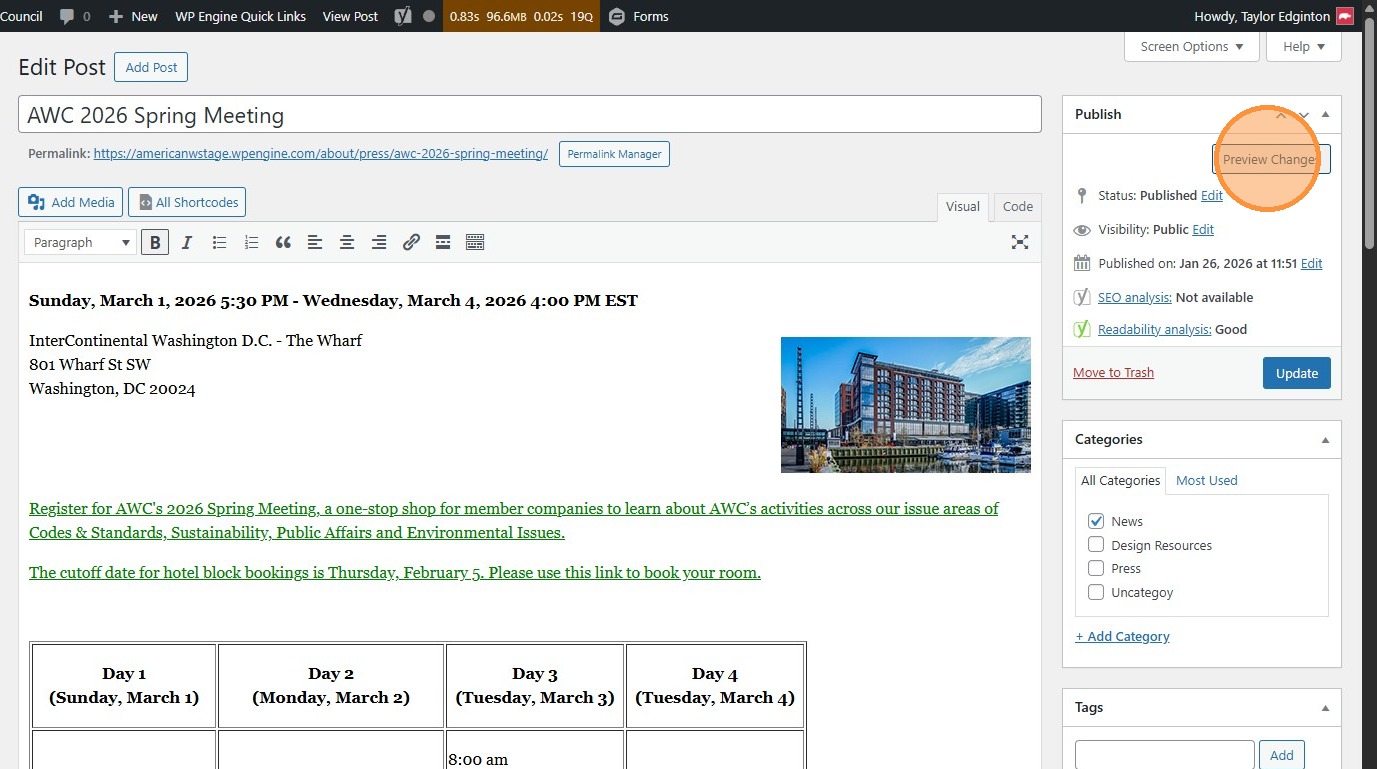
11. Click “Update” to publish changes to the live site.
Section titled “11. Click “Update” to publish changes to the live site.”